Getting started
From an empty account to a running Odoo: pick where it runs, add a server, create the instance.
An account holds one or more teams. A team has servers, instances, members and billing of its own. You start with a team named after you; rename it on the Team page.
1. Decide where Odoo runs
There are two ways to host, and the panel is the same on both. Two ways to host explains the differences; in short:
- Your own cloud server for a first Odoo or for several: we create it, secure it and keep it updated.
- Bring your own server when you already have one, with or without Odoo on it.
2. Add a server
Go to Servers → Add a server.
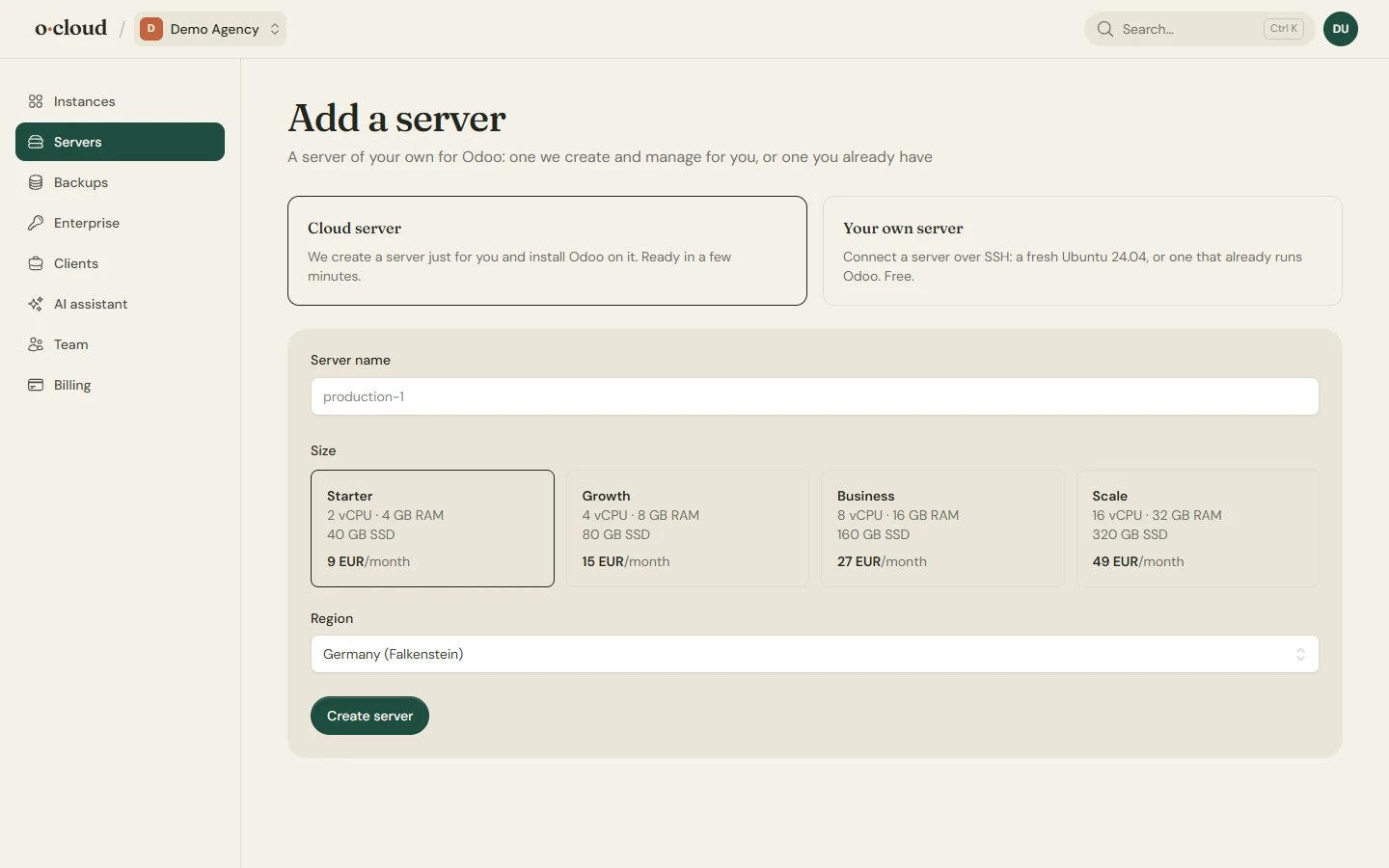
- A cloud server is created and set up in a few minutes: Ubuntu, PostgreSQL tuned to its size, nginx, a firewall, fail2ban, keys-only SSH and automatic security updates. You are taken to Stripe checkout first.
- Your own server wants a fresh Ubuntu 22.04 or Debian 12, or newer, and a way in: add the team's public key, shown on the page, to
/root/.ssh/authorized_keys, or give a root password that is used once to install the key. The same setup is then run on it. - A server that already runs Odoo is adopted as it is: switch on This server already runs Odoo. See Moving an existing Odoo.
3. Create the instance
Instances → New instance, or New instance on a server page.
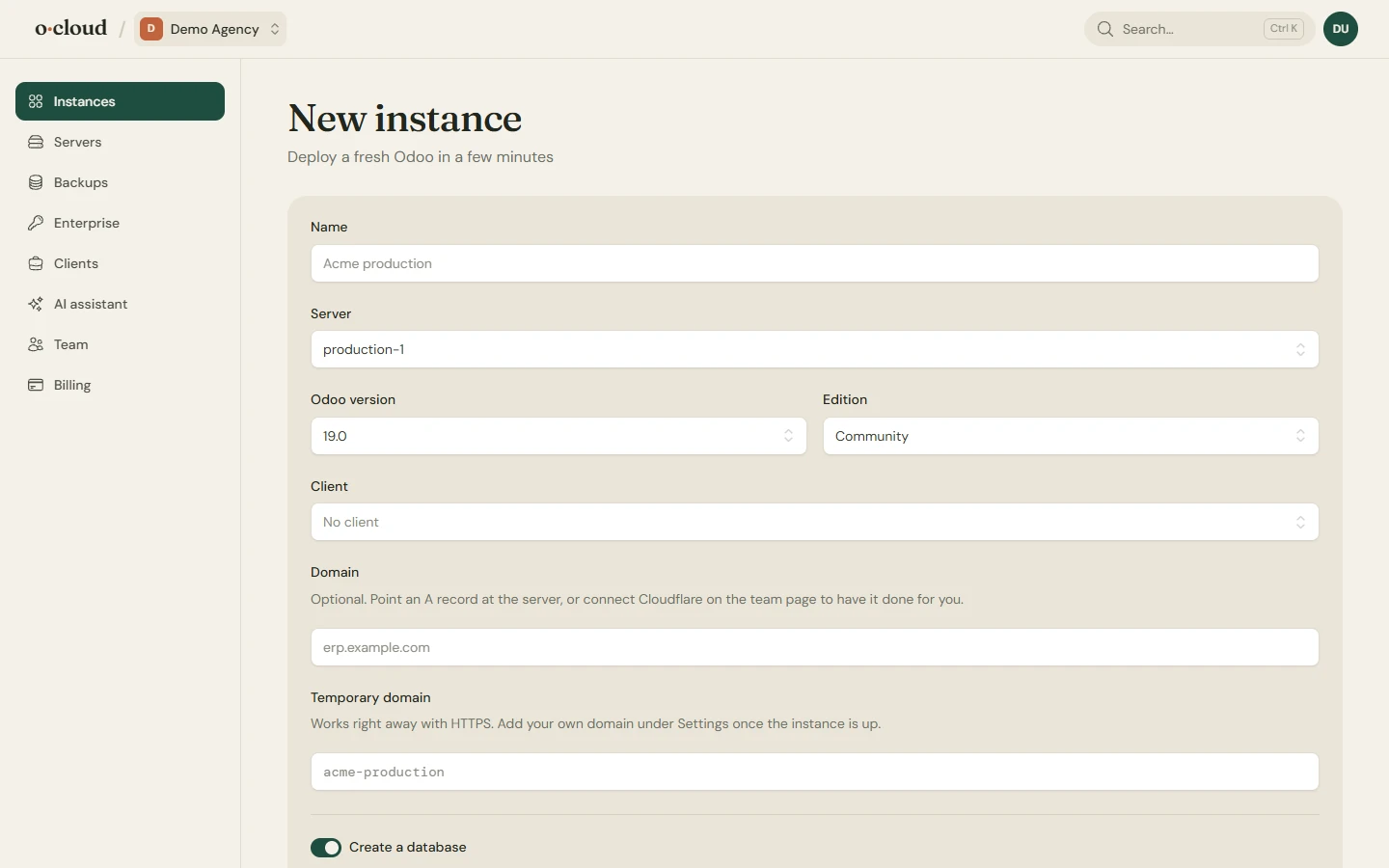
- A name, which also becomes the temporary domain. The page checks that it is free.
- The Odoo version and edition. Enterprise needs the source uploaded on the Enterprise page first.
- The server.
- A database, if you want one created now: its name, language, country and the administrator's login and password. Leave it out to start with Odoo's database manager instead.
- A repository and branch of your own code, if you have one. It can be added later on the Code page.
The first deploy takes a minute or two. The instance page shows the progress and the output.
4. Open Odoo
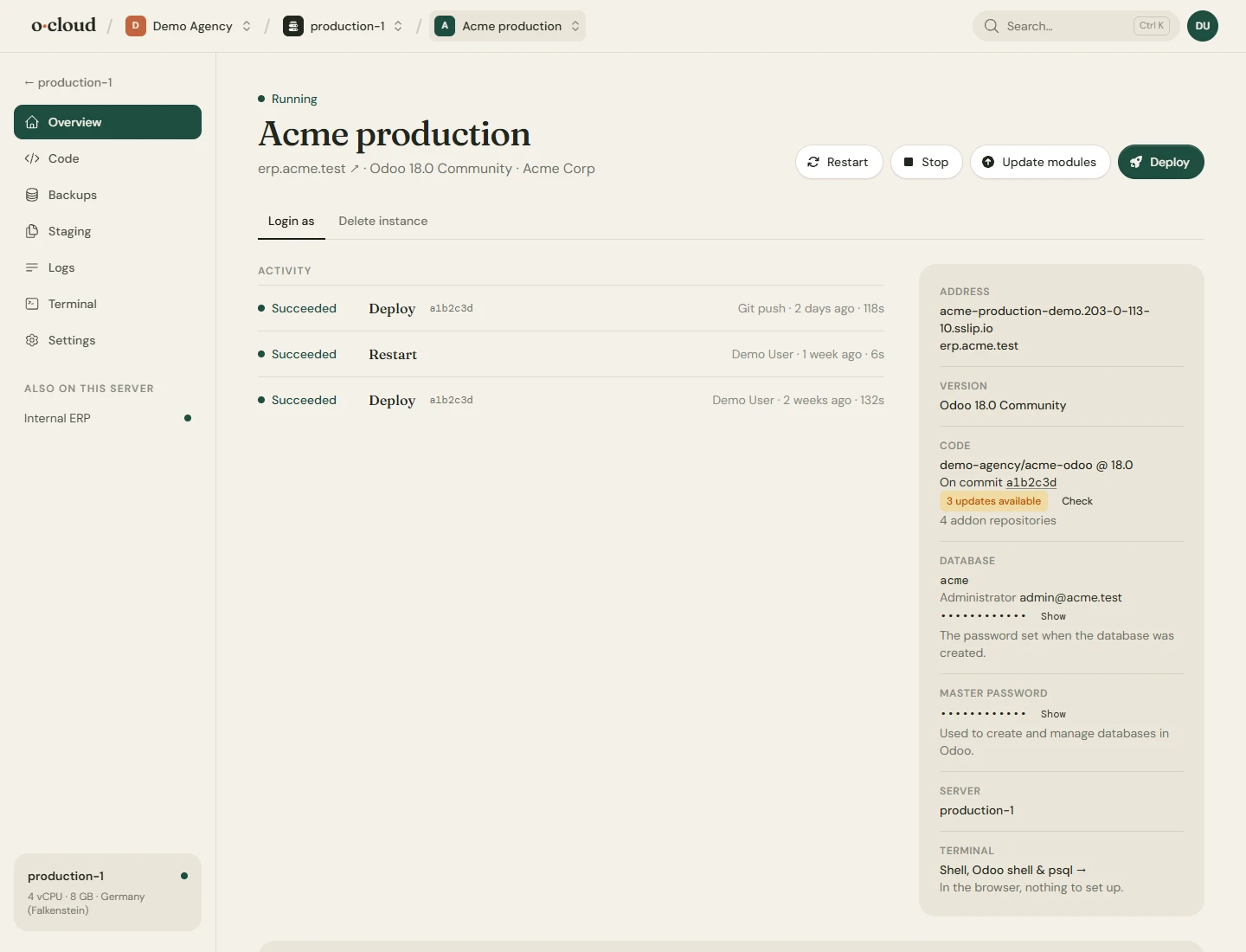
The overview has the address, the administrator credentials and a Login as button that opens Odoo as any of its users without the password. From here:
- Add your own domain under Settings → Domains and HTTPS. Point a DNS record at the server, or connect a Cloudflare account on the Team page and the record is written for you.
- Set a backup schedule on the Backups page. Nothing is backed up until you do.
- Connect GitHub on the Team page and give the instance a repository on the Code page.
What to read next
- Instances for domains, configuration and updates.
- Deploying code for GitHub, addon repositories and the marketplace.
- Backups for schedules and where they go.